How to use buffers
Quick answer
Here’s how to add time before or after meetings using buffers:
- Go to the Scheduling page and select the event type you want to edit.
- Select More options, then Limits and buffers.
- Select + Set buffer time.
- Add your preferred buffer time before and/or after the meeting.
- Select Save changes.
Your buffer changes will apply to new bookings and help prevent back-to-back meetings.
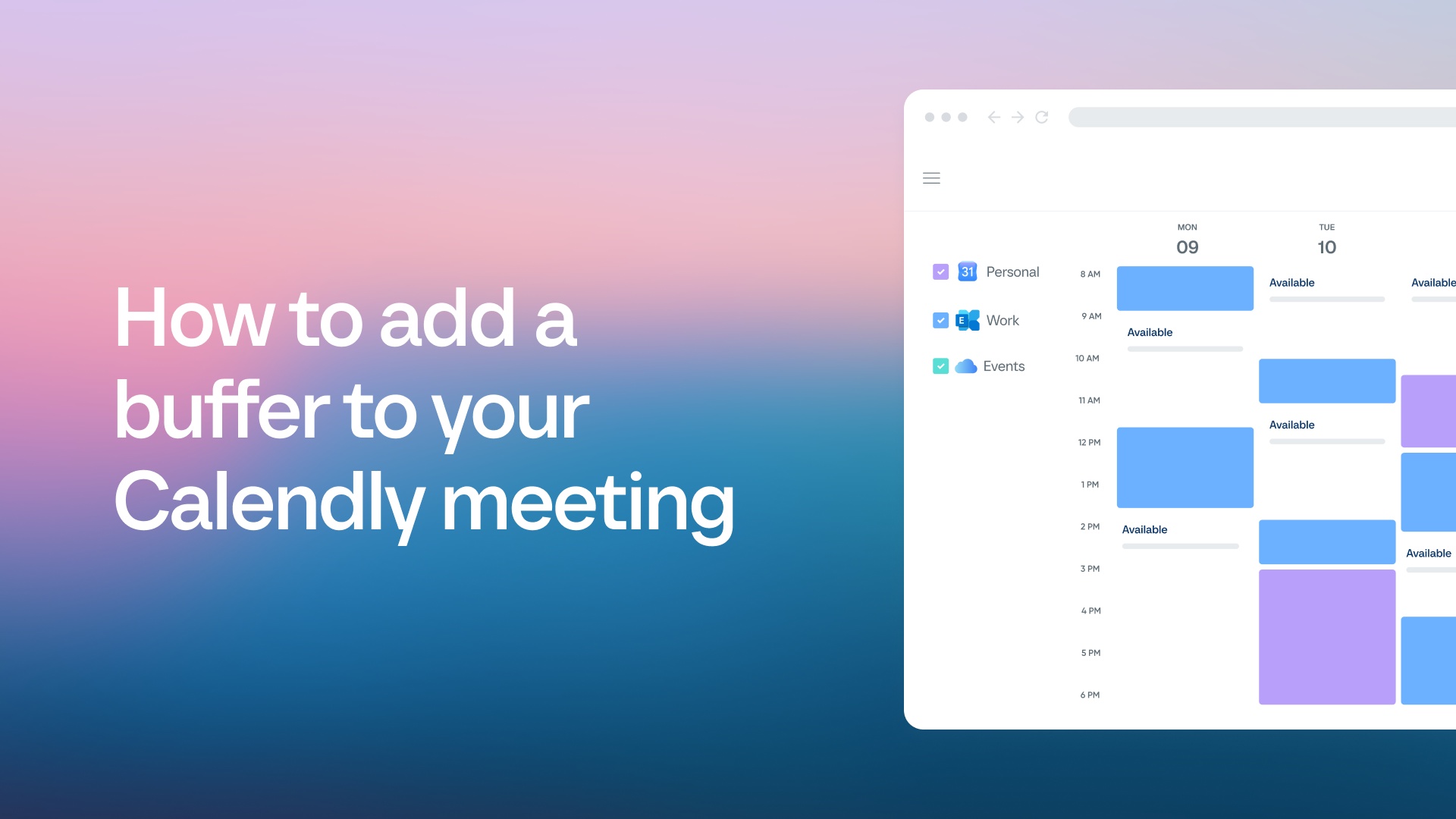

Buffers add extra time before or after your meetings. They help you prep, travel, or wrap up without feeling rushed.
What are buffers?
Buffers are short breaks before or after a Calendly meeting.
Use them to:
- Prepare before a meeting
- Travel between meetings
- Take notes or reset after a call
Each event type can have its own buffer settings.
Add a buffer to an event type
- Go to the Scheduling page and locate your event type.
- Open the three dots menu and select Edit.
- Click More options.
- Open the Limits and buffers section.
- Click + Set buffer time.
- Add your preferred buffer time before and/or after the meeting.
- Click Save changes.
Remove a buffer
For meetings not yet scheduled:
- Go to the Scheduling page and locate your event type.
- Open the
 three dots menu and select Edit.
 - Click More options.
- Open the Limits and buffers section.
- Set the buffer time to 0 minutes.
- Click Save changes.
For meetings already scheduled:
- Go to your Meetings page.
- Make sure Show buffers is turned on.
- Find the meeting and click the pencil icon next to the buffer.
- Edit or delete the buffer.
Show or delete buffers on your calendar
You can choose to display buffers on your connected calendar.
To turn this on:
- Go to your Availability page.
- Open Calendar settings.
- Under Sync settings, check Include buffers on this calendar.
When this is enabled, deleting a buffer from your connected calendar will also remove it from Calendly.
How buffers work
How buffers affect availability
Calendly uses the full meeting and buffer window to determine which booking times are available. Your connected calendars are checked for conflicts with both the meeting and buffer time.
Example:
A 30-minute meeting with 15-minute buffers before and after needs 60 minutes of free time. The meeting stays 30 minutes long, but the buffer time protects your availability.

Buffers don't prevent meetings from being scheduled at the edges of your working hours. If a before or after buffer extends outside your availability window, the meeting can still be booked. The buffer time might extend into hours when you're not available.
Example:
If your working hours are 9:00 AM–5:00 PM and you have a 30-minute after-buffer, an invitee can still book a 4:30 PM slot for a 30-minute meeting. The after-buffer would be created for 5:00 PM through 5:30 PM, outside your stated availability window.
Preventing scheduling conflicts
Buffers create protected space around your existing meetings. When you have an existing meeting (from Calendly or your connected calendars), a buffer around that meeting prevents new Calendly bookings from overlapping with the buffer time.

Using before and after buffers together
Using both before and after buffers can reduce the amount of bookable time between meetings. When buffers stack between meetings, that time may be blocked even if your calendar appears open.

Example:
Two 30-minute meetings with 15-minute before and after buffers create 30 minutes of blocked buffer time between the meetings, preventing another meeting from being booked in that space.
To reduce blocked time between meetings, use only a before or after buffer instead of both.
Multi-user meetings and buffers
Buffer settings from one user can impact the availability of multi-user meetings.
- Round robin: Buffers on other event types can cause uneven meeting distribution.
- Collective events: Buffers on someone’s other events might block available time slots.
Troubleshooting: BUFFER message
Calendly’s troubleshooting tool may show a BUFFER message. This means buffer settings are blocking a time slot.
You may see it if:
- A buffer overlaps with a meeting
- The total time (meeting + buffer) doesn't fit in your calendar
- Old buffer settings are still attached to a scheduled meeting
Troubleshooting other buffer issues
A non-Calendly event may be blocking time.
Try one of these:
- Delete the conflicting event or set its calendar status to free (Remember to check your all day events!)
- Change the buffer time to 0 minutes for the event type you're trying to schedule
Buffers on scheduled meetings don’t update automatically when you change your event type settings. If a meeting was booked before you changed the settings, it will still follow the old rules.
To check or remove these:
- Go to your Meetings page
- Use the Show buffers toggle
- Edit the buffer directly
This might be caused by double buffers — using both a before and after buffer. When stacked, these buffers can block more time than you expect.
To fix it:
- Edit the event type to use only a before or after buffer, not both
- For already booked meetings, adjust or remove buffers from your Meetings page